
此主题暂无中文版本,你正在阅读英文版。
Plugins & the marketplace
Add features without changing the core app: payments, themes, language packs, integrations, AI tools and more. Every plugin is signed and checked before it runs.
Add features without changing the core app: payments, themes, language packs, integrations, AI tools and more. Every plugin is signed and verified before it runs.
What plugins are
The till itself stays small. Anything that is specific to a country, a payment provider, a look or another service comes as a plugin: tax and fiscal rules for your country, card payments, themes, language packs, connections to other services and AI tools are all plugins. You add only what your shop needs, from the Plugin Store, the marketplace's catalogue of plugins.
Using the store never gets in the way of selling. A sale always completes offline, and the store only needs the internet to load its catalogue the first time, to download and to update.
You use this page when you want to add a feature, check what an installed plugin may do, change its settings, update it, or take it away again. Installing, removing and changing plugins is for managers; every step below is on the Plugins page.
Trust and safety
- Every plugin is signed. The marketplace signs each plugin, and the till checks that signature on the till itself, before the plugin runs. The check does not need the internet. If even one file of a plugin has been changed, the till refuses it.
- Trust badges. In the store, a gold badge means official Universal Till, a green badge means a verified developer. A plugin from an unverified publisher shows an Unverified badge, and the till asks for your confirmation before it goes ahead. On an installed plugin's card, a small tag shows how the till recorded the plugin's trust: an official or verified plugin from the store shows trusted, a plugin from an unverified publisher shows untrusted, and a layout built into the till for your type of shop shows system. A plugin imported from a file always shows untrusted. A plugin installed before this was fixed keeps its old tag until you next update or reinstall it. The tag is only a label: what a plugin may do is set by its permissions.
- A plugin can do only what its permissions allow. The plugin's page lists them before you install, and you can see them again, and revoke any of them, on its settings page (see Plugin settings and permissions).
- Withdrawn versions switch off by themselves. If the Plugin Store withdraws a plugin version, for example because of a security problem, the till turns that plugin off by itself the next time it checks, about every 30 minutes while it is online. This also applies to a plugin you had already turned off. The plugin's card shows Disabled, a red Withdrawn chip, and a line naming the withdrawn version and the reason the Plugin Store gave. The reason is written in the Plugin Store's own words and is not translated. If the till can't tell whether a newer version exists (for example offline), the card says it can't check for a replacement right now; reconnect to look for an update. Selling carries on as normal: the check never blocks a sale. If you turn the same version back on, the card shows Enabled and keeps the Withdrawn chip, and the next check turns it off again. Press Update to install a version the Plugin Store still offers, or uninstall the plugin; the notice goes away once the plugin is on another version or removed.
Browse and install from the Plugin Store
-
On the Plugins page, press Open Plugin Store. The store shows each plugin as a small tile: its logo (or its first letter), name, type and badges. Use the category chips (All and one per type) and the search box to narrow the list.
-
The store only lists plugins that run on this till: a plugin that needs a newer version of Universal Till, or a different kind of device, is not shown until the till is updated.
The picture shows sample listings. Your store shows the real catalogue. If the till is offline, the store keeps showing the last catalogue it downloaded. A till that has never loaded the catalogue shows "Can't reach the plugin store right now" instead (see What can go wrong).
-
Tap a tile to open the plugin's own page, with the full description, what it may access (the permission list) and a Download button (once downloaded, Install and Delete download take its place). On the page, permissions newer plugins can ask for, such as connecting to devices on your shop network, keeping their own private data, or running on a schedule, are explained in plain words in a list under the permission badges, so you can see what you are agreeing to before you install.
A permission starting
net:validation:is the one exception to encrypted connections: it lets the plugin download data such as certificate revocation lists and timestamps from that single internet address over unencrypted HTTP, and its line says so. Anyone on the network path can read or change that connection, so the plugin is expected to check the data's signatures itself. -
On a till that is not registered yet, the first Download registers it with the cloud, so the plugin's page first shows the cloud terms box: tick it to accept the terms (once per terms version). Without the tick nothing is downloaded and the page tells you to accept the terms first.
-
A plugin marked Paid needs an entitlement your merchant manager approves in the marketplace portal before it can be installed. Trying to download one without approval shows a message explaining that, instead of downloading.
-
Press Download, then Install. A plugin from an unverified publisher asks you to confirm first.
Report a plugin. A plugin's page has a Report this listing link. It opens the marketplace's report page in your browser, where you pick a reason and describe what is wrong; you need no account and the till does not have to be online for the page to show the link. The foot of the store pages links the Marketplace publisher terms and the Marketplace content guidelines, which say who may publish and what a plugin may not do. 7. To get back to your installed plugins, press Manage installed plugins at the top of the store. On a plugin's page, it takes the place of Download once the plugin is installed.
What the store shows for a plugin you have already started with:
- Downloaded: you downloaded it but have not installed it yet. A plugin you download but don't install right away stays staged for 48 hours. If that window passes, its Downloaded badge quietly reverts to a plain Download button and it needs downloading again before it can be installed. This is routine disk housekeeping, not an error: nothing is lost. Delete download on the plugin's page removes a staged download yourself.
- Installed: it is on this till.
- A red tag with a reason (or just Install failed): an install the till started by itself (for example on a till following the main till) did not finish. When the cause is usually temporary the tag ends with · you can retry; try Download or Install again. A failed Install you pressed yourself leaves the same tag, and its reason also shows in red under the description right away. A failed Download shows its reason there only.
In a shop with several tills, install on the main till only (see Several tills).
Manage installed plugins
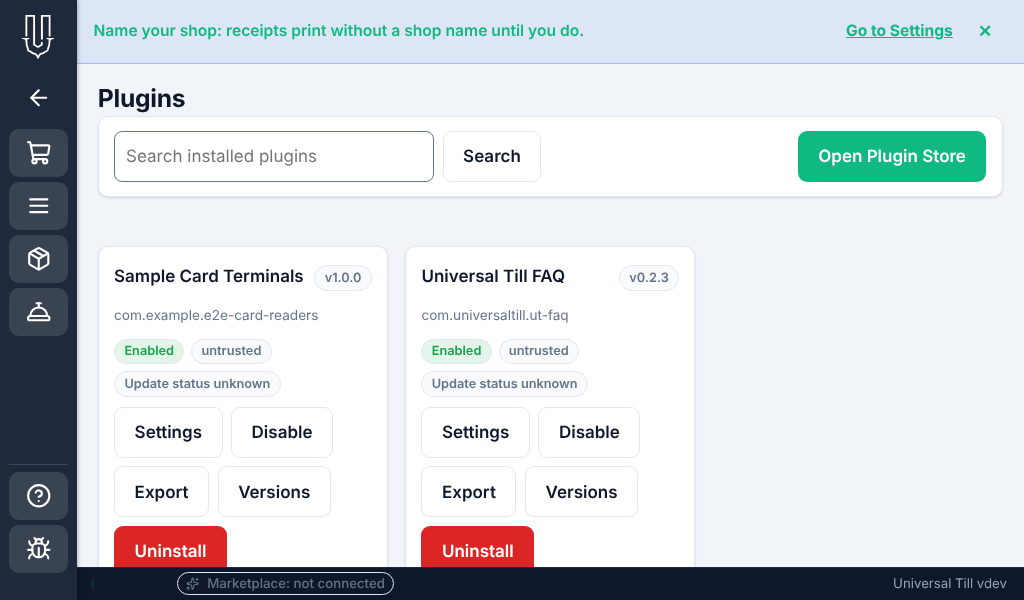
The Plugins page lists every plugin installed on this till as a card. Use the search box (Search installed plugins) to find one by name.
Each card shows tags: Enabled or Disabled, the trust level, Broken ⚠ when its files are missing (see What can go wrong), a red Withdrawn ⚠ when the Plugin Store withdrew the installed version, an Update: tag with the new version number when a newer version exists, and Update status unknown when the till can't tell.
The buttons on a card:
- Settings: opens the plugin's settings page (shown while the plugin is enabled).
- Docs: an installed plugin that ships its own documentation shows a Docs button on its card, which opens that documentation right inside the till.
- Disable / Enable: turn the plugin off or on without removing it.
- Update: installs the newer version (see Updates and rolling back).
- Export: saves a signed copy of the plugin as a file (see Import from a file and export).
- Versions: shows the versions kept on this till and lets you roll back.
- Uninstall: removes the plugin. The till asks you to confirm first.
Plugin settings and permissions
Each plugin has its own settings page; some settings are shared shop-wide, others are per till (a setting that applies to this till only is marked this till only). Open it with the Settings button on the plugin's card; the address of a plugin that isn't installed on this till takes you back to the Plugins list instead.
Filling in the form
- A plugin can give a setting a control that fits it: an on/off switch, a box for a whole number, a percentage (shown with %) or an amount in your shop's currency. Type a percentage or an amount with a dot or a comma before the decimals.
- Some fields must be filled in or have limits (for example at most 50, or at most 10 characters).
- A setting that holds a web address (for example the address of a device or server the plugin talks to) only accepts one that starts with http:// or https://; anything else is refused with a message, and nothing on the form is saved.
- A plugin can offer a setting as a drop-down list of choices and hide the fields that don't apply to your choice. For example, the AI Assistant shows the address of your own AI server only while a self-hosted provider is selected, and the API key only for a provider that needs one.
- Some drop-downs are filled in by the plugin itself (for example a list of AI models): the list loads a moment after the page opens (the page itself doesn't wait — "Loading choices…" shows only if the plugin takes longer than about half a second), and it loads again when you change a field it depends on, such as the provider, without saving. A plugin may have nothing to list until its other settings, such as an API key, are filled in and saved; the drop-down then says so, and the list refreshes after you save. If the plugin can't be reached, the drop-down keeps your saved choice, says the choices couldn't be loaded, and offers Try again; you can still save. A saved choice that the plugin no longer lists stays saved until you pick another.
- A key that is already stored shows ✓ Saved. Leave its box blank to keep it, type a new one to replace it, or tick Remove saved key to delete it.
- When you save, every field is checked first. If any field is wrong, nothing is saved, the page keeps what you typed (except a key, which you type again), and each wrong field is marked with a message under it that says what to fix. A field that is hidden because it doesn't apply to your choice is not checked.
- If a value saved earlier no longer fits its field (for example after a plugin update turned a text box into a number), the field shows it with a note that it isn't valid; it stays as it is until you change it.
Tabs
A plugin with many settings can group them into tabs. The settings it did not put in a tab come first, under General, followed by the plugin's own tabs in its order; a tab with nothing in it is not shown. On a wide screen the tabs sit in a row above the form (swipe it sideways if it doesn't fit, or use the Left and Right arrow keys, Home and End); on a narrow screen each tab is a section you open and close. A tab can be hidden because it doesn't apply to your choice, and its fields are then not checked or saved. One Save settings button below all the tabs saves them together. If a field is wrong, the tab holding it shows a ⚠ and the number of problems, and that tab opens so you can fix it.
Permissions
Below the settings form, a Permissions section lists every permission the plugin declared (for example sales:read) with its current status, Granted or Not granted, and a button to grant or revoke it. A plugin that declares no permissions shows "This plugin declares no permissions." there, with nothing to manage.
A permission that the plugin's store page explains in plain words (connecting to devices on your shop network, keeping private data, running on a schedule, AI data access and so on) shows the same explanation under its name here, so you can see what you grant or revoke.
- Revoking takes effect immediately and stays in place when the plugin updates from the marketplace. An update grants only a permission the new version requests for the first time.
- A permission shown as Connects only to the address saved in: followed by setting names lets the plugin reach exactly the address you enter in those settings (a device or server on your shop network included) and nothing else. Change the setting and the permission follows it. Under it, Currently: shows the address the permission reaches right now (a default the plugin came with included), or not set when it reaches nothing. Check it before you grant.
Takeaway tax rates
A tax plugin that supports takeaway rate overrides shows a dedicated editor on its settings page instead of raw text. Enter the takeaway percentage next to each tax code, and any item using that code switches to that rate when the order is takeaway. Leave a field blank to charge the dine-in rate.
- A takeaway percentage takes at most two decimals (
7.25is fine,8.875is refused). - A stored rate that is out of range (0 % or less, or above 100 %) shows empty with an "Invalid takeaway rate" note naming the stored value. Enter a valid rate, or leave it blank to remove it; the rest of the page still saves.
AI Assistant
- The AI Assistant plugin's settings page shows a notice above its API-key field. Choosing a hosted provider (provider = claude or openai) sends what the AI features work on to that provider's servers, while the default self-hosted option keeps everything on your own hardware. Read the notice before entering a key.
- With provider = openai_compatible the plugin uses your own OpenAI-compatible server (LM Studio, vLLM, llama.cpp) at the endpoint address instead. The data goes to whatever server that address names, and the API key is optional.
- Its background-removal settings (image_provider, image_endpoint, image_model) are optional: background removal is built into the till and works without them. Fill them in only to use your own rembg service instead.
- Only the models birefnet-general-lite and u2netp are allowed. Any other model shows a hint above the field, and the till keeps using its built-in background removal.
- An image_endpoint that isn't a web address starting with http:// or https:// (for example
192.168.1.20:7000, typed without http://) also shows a hint above the field, and the till keeps using its built-in background removal until you correct it.
Built-in card payments on the iPhone and iPad app
On the iPhone and iPad app, plugins that run code can't be downloaded or imported: the store and Import from file refuse them. The Stripe and SumUp card payment plugins and the UK VAT plugin are built into the app instead, so you don't install them. Their permissions (for example, reaching Stripe or SumUp to take a payment) are already granted; there is nothing to approve.
- Open Plugins. The built-in plugins sit first, under Built in. Stripe and SumUp start switched off.
- Press Settings on the one you use, enter your keys and save. The settings stay editable while the plugin is off.
- Press Enable. Its card button now appears on the payment screen. Disable takes it away again.
The UK VAT plugin is switched on for you when the shop's country is the United Kingdom, because UK tax is not optional. If you switch it off yourself, the till keeps it off.
A plugin that runs code and reached the iPhone or iPad app another way, for example from a restored backup, shows as Broken for a moment: the app replaces it with its own built-in version of the same plugin, keeping your settings and whether it was on. Any other plugin that runs code from another source never runs there. Items whose tax comes from a broken tax plugin can't be sold on that device until it is replaced.
On an iPad that follows a main till (see Several tills), a built-in plugin's card shows Set by the main till: the main till's on or off choice reaches the iPad within about half a minute, and Enable and Disable are not offered there.
Only a manager or an admin can switch a built-in plugin on or off. A built-in plugin can't be uninstalled and shows no "update available": it updates when the app does. Themes and language packs still install from the store as usual.
Updates and rolling back
- The till checks for plugin updates in the background. You don't need to open this page for an update to be found.
- Language packs update themselves automatically, so a newer translation reaches your till without any action from you. A language pack for a script your till has no font for, such as Thai or Japanese, brings its own font, so the text shows correctly even offline.
- Every other kind of plugin waits for you to review it here. A green Plugin updates available chip appears in the status bar at the bottom of the screen whenever one is pending, with a count. Tap it to come straight to this page and update from the list.
- If a joined till can't apply a pending language-pack update itself (it always applies from the main till, never on its own), a separate Language pack update available chip shows until the main till has caught it up. On a joined till the chip reads Updates are installed from the main till instead: a joined till follows the main till's plugin versions and never installs an update itself, so the chip takes you to the main till (or, on a kiosk screen, to this till's Tills page). Install the update there and this till follows within about half a minute.
- A plugin the till can't match against the marketplace catalogue, most commonly one installed via Import from file, or one whose newest version needs a newer version of Universal Till, shows an Update status unknown chip instead of an update badge, so it never looks like it's already current when nobody actually checked. This is informational only; it doesn't block anything.
- Rolling back. If an update causes a problem, use Versions on that plugin's card to see the versions kept on this till (the current one is marked Currently installed) and roll back to an earlier one with Roll back to this version. Rolling back is itself a confirmed action and takes effect immediately, the same as installing an update. A plugin with no earlier version kept shows "No earlier versions available".
Import from a file and export
Use this to move a plugin to a till that is offline, or between tills. Import from file (below the installed plugins) expects a bundle that was signed by the marketplace. The two ways to get one are downloading it from the Plugin Store (even if you then transfer the file by hand) or using Export on a till that already has the plugin installed.
- A
.tar.gzattached directly to a plugin's GitHub release page is not signed and will be refused with a message saying so. That download exists for developers inspecting the source, not for installing on a production till. - The signature is checked on the till itself, so importing works offline. The signature covers every file in the bundle: if any file was changed, the bundle is refused.
- An export of a plugin copy installed before this check was introduced carries no such signature and is refused too. Reinstall the plugin from the Plugin Store, then export it again.
- If the till says it has no marketplace signing key yet, connect it to the internet once and try again.
- In a shop with several tills, importing works on any till, but the plugin stays on the till it was imported to (see Several tills).
Themes and language packs
Themes and language packs are plugins like any other, so the store, trust badges, permissions and updates work the same way. For what they change on screen, see Languages & display (themes next to the six built-in looks, language packs under Settings → Language) and Translations. Language packs update by themselves (see Updates and rolling back).
Plugin pages and panels
Pages. Some plugins add their own pages to the menu. The till draws these pages itself, in your language and layout.
- If such a page can't load (the plugin is slow, stopped or out of date), it shows This plugin page can't be shown right now instead. The rest of the till keeps working, so carry on and open the page again later. If it keeps happening, check the plugin for an update.
- If a button or form on such a page doesn't go through, the page shows That didn't go through above it and keeps what you typed, so you can send it again in a moment.
- A plugin page may ask you to choose a file, such as a photo. Each plugin sets the largest file it takes; a bigger file is not sent, and the plugin tells you which field to fix.
- Some actions on these pages take longer, such as identifying a product from a photo. The page then shows a progress bar while the plugin works, and the result replaces it when it's ready. The rest of the till keeps working meanwhile.
- A plugin can only run a limited number of these tasks at a time. If you start one too many, the page asks you to wait for a running one to finish.
- If you leave the page for more than a few seconds, the task stops and its result is not kept, so start it again when you come back.
Panels. Some plugins also add a panel to a screen you already use: Reports, the End of day tab, an item's edit window, or the last step of first-time setup.
- A panel appears a moment after the screen itself, below that screen's own content. If the plugin is slow or not working, its panel is simply left out: the screen works as normal without it.
- Panels on Reports are shown only to staff who may see reports.
- A plugin can also add its own section to Settings or its own page to Administration. You find it under Plugins in that screen's list, never mixed into another section. If such a section can't load, it shows This plugin page can't be shown right now: open it again in a moment. Plugin pages in Administration are shown only to staff who may see reports.
Several tills
In a shop with several tills (see Multiple tills), install, remove, enable and disable plugins on the main till only. Every joined till fetches the same plugin from the store itself and applies the change automatically within about half a minute. A plugin you switch off on the main till is switched off on every joined till too, and stays installed there with its settings.
- A joined till's own install, uninstall, enable/disable and update actions are refused with a message pointing to the main till.
- Plugins imported from a file are the exception: importing still works on any till, joined ones included, but the plugin stays only on the till it was imported to and is never copied to the others.
- Update chips on a joined till point to the main till (see Updates and rolling back).
Your country's free tax plugin
When you finish first-time setup, the till installs your country's free tax plugin by itself if the plugin store has an official, free one for your country: no tap needed, and it works the same whether the till set up on its own or joined a shop. For the country choice itself, see Country settings.
- A small status line on the page you land on after setup says Installing … in the background, then installed.
- If it can't install yet (no internet, the plugin isn't being served, or the till's own safety checks refused it), the line says it is retrying automatically and why, and that sales are not affected: you can keep selling, every item simply uses its own tax rate until the plugin is in. The same line shows under Settings → Free plugins for your country while it is waiting.
- Only free official plugins that need no internet access and no fiscal signing are installed this way. A plugin that signs receipts, such as the German fiscal plugin, is never installed by itself and still asks you first during setup.
- The plugin shows Installed automatically for your country on its card.
- Installing it changes no price by itself: some plugins need you to open their Settings and map your tax codes before they change a rate, and you stay responsible for the VAT you charge.
- To remove it, use Uninstall (or Remove on the waiting line) and confirm. Items then use their own tax rate, and the till does not install it again by itself; installing it again later is an ordinary install from the store. Only a manager or admin can uninstall it.
- It is installed only when setup finishes, never when you change your country later or after an update.
What can go wrong
| What you see | Why | What to do |
|---|---|---|
| "Can't reach the plugin store right now — check the connection. Sales keep working offline; the store fills in when it's back." and a red "— catalog unavailable (offline?)" next to the title | The till is offline and has never loaded the catalogue. | Check the connection. Sales are not affected. Press Manage installed plugins to work with what is already installed. |
| A plugin page in the store shows the same offline message | Same cause. | Same fix; open the plugin again once the till is online. |
| "No plugins are available yet." or "No plugins are approved for this store yet. Ask your merchant manager to approve plugins in the marketplace portal." | The catalogue is empty, or your merchant manager has not approved any plugin for your store. | Ask your merchant manager to approve plugins in the marketplace portal. |
| "No plugins match your search." | Nothing in the store matches the search or category. | Clear the search, or choose All. |
| "This plugin needs approval before it can be installed — ask your merchant manager to approve it in the marketplace portal." (also: "This plugin requires a paid entitlement approved by your merchant manager before it can be installed.") | A Paid plugin without an approved entitlement. | Ask your merchant manager to approve it in the marketplace portal. |
| "Accept the Universal Till cloud service terms to register this till." | The terms box on the plugin's page is not ticked. | Tick the terms box, then press Download again. |
| "This till follows a main till — install plugins on the main till; they arrive on every till automatically within about half a minute." (also on manage and uninstall) | You used a joined till. | Do it on the main till. |
| "The marketplace has withdrawn this plugin version, so it can't be installed. Install another version." (and "…so it can't be turned on. Update the plugin to another version.") | The marketplace withdrew that version. | Update to another version. Use Uninstall to remove the plugin. |
| "This app can't install plugins that run code. Stripe and SumUp card payments are built in: turn them on under Plugins and enter your keys." | You tried to install, import or update a plugin that runs code on the iPhone and iPad app. | Use the built-in Stripe or SumUp plugin under Built in, or use a different till for other plugins. |
| "Built-in plugins can't be uninstalled. Turn this one off instead." | You pressed uninstall on a built-in plugin. | Use Disable. |
| "This plugin is not compatible with this till." | The plugin needs a newer Universal Till or another kind of device. | Update the till, or pick another plugin. |
| "The plugin package failed verification." | The download did not pass the till's signature check. | Download it again. If it keeps failing, do not install it. |
| "This plugin can only be installed on a till paired with your shop. Pair this till first (Settings → Till registration → Pair with a shop), then try again." or "This till's connection to your shop is no longer valid. Pair it with your shop again …" | The till is not paired with your shop, or its pairing has lapsed. | Pair the till as the message says. |
| "This till was moved to another shop …", "This till was removed from your shop …", "This till was replaced by another till in your shop …" | The till's shop connection changed. | Follow the message: connect it to its new shop, pair it again, or install plugins on the till that replaced it. |
| "This plugin requires a claimed store account — sign in and claim your store to install it." | The store has no owner account yet. | Sign in and claim your store. |
| "This till cannot connect to the plugin store yet. Settings → Till registration says when it can reconnect." | The till's connection to the store is paused. | Wait until it can reconnect. |
| "Plugin downloads are not available for this shop." | Downloads are not available for this shop. | Contact support. |
| "Install failed. You can retry." | The install did not finish, often a passing network problem. | Try the install again. |
| "Can't reach the plugin marketplace right now — check this till's internet connection. …" | The till could not connect to the marketplace. | Check the connection and press the button again. Selling is not affected. |
| "The download didn't finish. Press Download again; …" | The download stopped part-way. | Press Download again. |
| Broken ⚠ badge on a card | The plugin's files are missing or unreadable on this till (this can happen right after a till joins the shop). | A plugin installed from the store is reinstalled automatically within about half a minute, so no action is needed. A plugin imported from a file is not repaired automatically: import the plugin file again on that till. Until it recovers, items whose tax rate it decides can't be sold on that till. When only one item in the basket is affected, the sale screen names it and removing it lets the rest of the sale complete. When every item is affected (for example when the broken plugin is the till's only tax plugin), checkout on that till is unavailable until the plugin recovers: wait a moment and try again. |
| "This plugin bundle is unsigned and can't be installed. Install it from the Plugin Store instead, or use Export on another till to create a bundle this till can import." | The file is not signed by the marketplace (for example a GitHub release download). | Use a bundle from the store or from Export. |
| "Import failed. Check that the file is a valid plugin bundle and try again." | The file is not a plugin bundle, or a file in it was changed. | Get a fresh bundle. |
| "This till has no marketplace signing key yet, so it can't check plugins and won't install any. Connect the till to the internet and try again." | The till has not yet received the marketplace's signing key. | Connect the till to the internet once and try again. |
| "Nothing was saved. Fix the marked fields and save again." | A settings field is wrong. | Fix the marked fields (the message under each one says what to fix) and press Save settings. |
| "The saved value isn't valid for this field, so the plugin may not use it. It stays as it is until you change it." | A stored value no longer fits its field. | Enter a valid value and save. |
| Update status unknown | The till can't match the plugin against the catalogue. | Nothing is wrong; this only means nobody could check. |
| "This plugin page can't be shown right now. Try again in a moment — the rest of the till keeps working." | The plugin is slow, stopped or out of date. | Try again; if it keeps happening, check the plugin for an update. |
| "That didn't go through. Your entries are still here — try again in a moment." | A button or form on a plugin page did not go through. | Send it again. |