
Country settings
The default currency, tax rate and archive retention used for each country, and how to adjust them for your own shop.
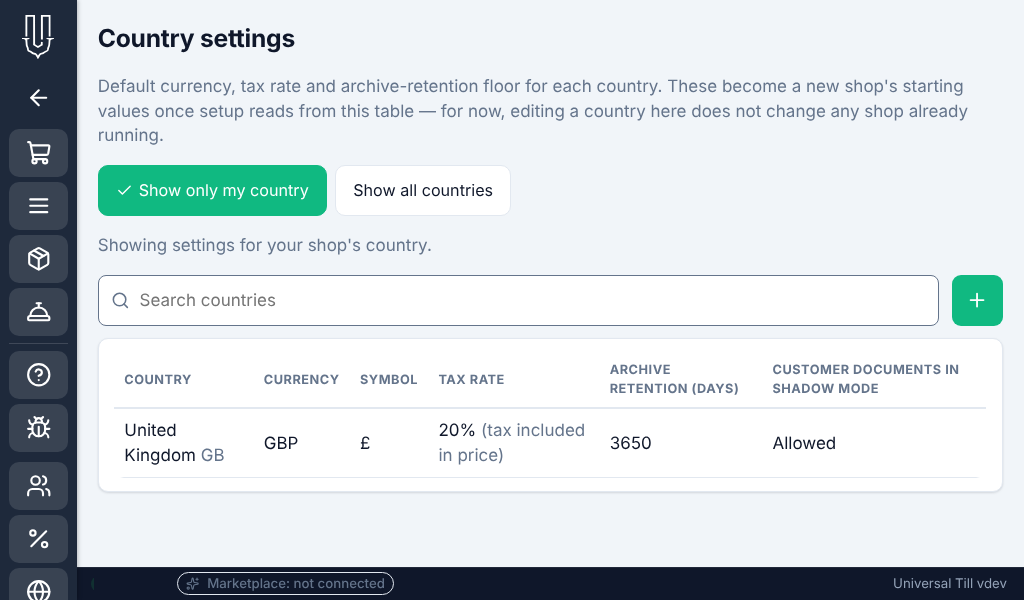
Every country the till knows about comes with sensible defaults: which currency it uses, the usual tax rate, whether that tax is already included in the price, and a minimum number of days archived transaction batches should be kept. Each country also has its own default language (for example, Germany defaults to German) — this part isn't editable from this page yet, only currency, tax and retention are.
This page is where those per-country defaults live. The first-boot setup wizard now reads them, so an edit here reaches the country step the next time a till is set up from scratch. It does not change a shop that has already been set up — its currency/tax stay whatever was chosen at the time. Archive retention is different: the value shown here is what a permanent-delete of a reset archive batch (Settings → Data management) is measured against, for every shop, the moment it's saved — see the Reports help topic's "Report retention" section for how that plays out.
How to use it
- Open Country settings from the menu (manager only). By default you see only your own shop's country, with its currency, tax rate and archive-retention floor.
- Tap the + button beside the search box to add a country, or tap an existing row (or Tab to its name and press Enter) to edit one. A full-screen dialog opens with the code, currency, symbol, tax rate and archive-retention floor; fill in what you need and tap Save. The code is free text when you're adding a country (letters and numbers only, up to 8 characters) — once you're editing an existing row the code is locked, since it's what identifies which row your changes are saved to.
- To see every country the till knows about — useful if you're setting values up for a till that will run in a different country — tap Show all countries above the table. Show only my country takes you back to just your own. The table swaps over in place — you stay on the same page, and from the Administration screen the menu tree beside it stays put.
- Closing the dialog with unsaved changes asks you first, so a stray tap on Close never throws away what you typed.
- Inside an open country's dialog, the button beside Close is Restore defaults for a built-in country (puts it back to the values it shipped with) or Delete for one you added yourself (removes it completely) — either one asks you to confirm first.
Good to know
- Tax is entered as a percentage — enter
19for 19%. Fractional rates like8.1(or8,1— a dot or a comma both work) are fine, with at most two decimals (8.25yes,8.875no), and are saved exactly — and the setup wizard prefills a new till with the same exact rate, so8.1arrives there as8.1. - Tax included in price means the shelf price already contains the tax, which is normal in most of Europe. Leave it off where tax is added at the till instead.
- Archive retention here is a floor you can raise but not lower below the minimum shown. It controls when a reset archive batch (Settings → Data management → Reset archives) becomes eligible for permanent deletion: a batch holding real sales can't be deleted until this many days have passed since it was archived. Raising the value protects existing batches further out immediately; it never shortens protection already in effect. The Reset archives list itself shows each protected batch's retained-until date directly and hides its Delete-permanently button until then, so you never type the confirmation only to be refused.
- Editing a country here does not change any shop already set up, and does not rewrite sales you have already taken.
- Choosing a country at first-boot setup also sets the till's default language to that country's own (e.g. Germany → German) — it does not require the matching language pack to already be installed. Changing your shop's country later, via the raw key/value editor under Settings → All Settings (
store.country), does the same thing automatically only when that language is already installed or reads left-to-right the same as English (e.g. French, Spanish); a right-to-left language like Urdu is left as it is until its pack finishes installing, so you never lose a language you can already read for one whose text and layout aren't ready yet — once that pack's install completes (in the background, or from Settings → Data management), your shop's language switches to it automatically, the same way it would have if the pack had already been there when you chose the country. This never happens if you've already picked a different language yourself in Settings → Language — your own choice is never overridden automatically. If the till was never given a language, it also takes your country's own date order the next time it starts (for example a UK till shows 06/11/2026, not 11/06/2026). Your own language choice is never changed. - If you are unsure what your own country requires you to keep, ask your accountant before assuming any number shown here is a compliance guarantee — this page does not certify compliance with any particular country's record-keeping law.
- If your shop's own country setting doesn't match anything on this page (rare — this normally can't happen), the page shows every country with a note explaining why, instead of the usual single-country view.
- Customer documents in shadow mode is shown read-only: it ships with the till and isn't something you can edit here. Not issued means that in this country a till running in shadow mode (next to the shop's existing till, which stays the legal record) records every sale but gives customers no receipts or invoices: no automatic or manual receipt print, no receipt on screen after payment, and a notice on the sale screen saying so. Today this applies to Portugal. This describes what the till does; it is not legal advice.
Currency display
Amounts can show your shop currency as a symbol (£12.50), as its three-letter code (GBP 12.50), or let the till choose. Open Settings → Currency and use Currency display (manager or admin; it applies to the whole shop, every till).
- Automatic writes the code for currencies whose symbol is hard to read or shared with other currencies (AED, SAR, IQD, AFN, IRR, IRT) and the symbol for the rest (GBP, USD, EUR, JPY). Symbol and Code always use that form. Each choice in the list shows an example with your currency.
- Printed receipts and Z-reports follow the same choice. If the printer cannot print the symbol, the receipt prints the code instead, so you never get a question mark in place of the currency.
- The choice changes only how amounts are written. Stored amounts, decimals and totals stay exactly as they were, and nothing is converted — a different currency is still chosen in the Currency card above.
- Pages that are already open keep the old display until they are reloaded. A screen that shows amounts in more than one currency can show both forms.
- Invoices follow the on-screen choice and its digits; the printed receipt always uses Latin digits.