
Open orders
Every order on this till that is still waiting to be paid, in two tabs: sales put on hold, and self-order kiosk orders to be paid at the counter.
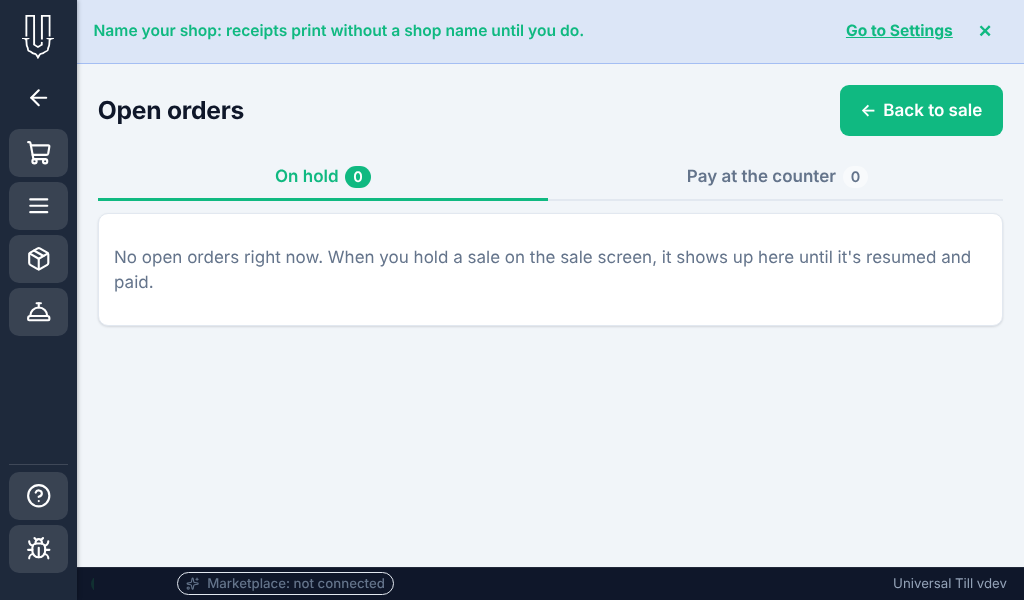
Every order on this till that is still waiting to be paid, in two tabs: sales put on hold, and self-order kiosk orders to be paid at the counter — who each one is for, which table, how much, and how long it has been waiting.
How to use it
- Open Open orders from the ☰ menu, or tap Open orders next to the pay button on the sale screen. The orders are split into two tabs, each showing how many orders it holds: On hold — sales held on the till — and Pay at the counter — orders customers placed at the self-order kiosk and pay for at the till. Each row shows the order's name, its table (if it has one — an order that is all takeaway has no table and shows a Takeaway tag instead, here and in the sale screen's list), how many items are in it, its total, and how long it has been open: in minutes, then hours (h), then days (d).
- Tap any order, in either tab, to open it on the sale screen — both tabs work the same way. If you already have a sale going, it is held for you first — under its own name, in the On hold tab — so nothing you rang up is lost, then the order you tapped comes up in its place. The number on the Open orders button on the sale screen shows how many orders are waiting across the shop, and it updates by itself within a few seconds when another till holds, takes up or pays an order — no need to leave the sale screen. In the sale screen's list, a dine-in order also has a Move table button: tap it, then tap one of the free tables shown, and the order moves there while staying open. If another till took that table in the meantime, the till says the table is already occupied and the order stays where it was.
- Change the order if you need to — add or remove items like any sale — and take payment as normal. A pay-at-the-counter order then becomes a real sale: it gets a receipt, it is in the Journal and in day-close, it is fiscally signed wherever your country requires it, and its kitchen ticket prints at this point, showing the customer's order number.
- Holding an opened order again keeps it as the same order: same name, same tab, and the "open for" time keeps counting from when it was first held. Only a brand-new sale gets a new entry.
- To get rid of an order nobody will pay for, tap the bin button at the end of its row — on this page, or in the sale screen's Open orders list — then tap Cancel order (Keep order leaves it as it is). Cancelling needs the same permission as removing a priced item from a sale (void / comp / waste): a manager can cancel straight away, anyone else is asked for a manager's PIN. The order is gone for good and its table is free again; nothing goes back into stock, because a held order never took anything out. The Audit trail records it (action cancel, with who cancelled it, who approved it if a PIN was used, and the order's name, item count and total). An order placed before this version (shown as Priced when opened) has no bin button — open it first, then cancel it from the list once it is held.
Notes
- The On hold tab is empty until someone holds a sale — see Selling & checkout for how to hold and recall a basket.
- Pay-at-the-counter orders appear when the self-order kiosk is set to pay at the counter (Settings → Kiosk payment mode). Each is named after the customer's order number, shown on the kiosk's confirmation screen (for example C-12 · Takeaway).
- An order placed before this version of the till shows what was ordered and Priced when opened instead of a total. Tap it and it is priced from your items as they are now; anything that no longer matches one of your items is not added, and the sale screen lists it so you can add it by hand before taking payment. It is priced as Dine in, unless it was a Takeaway order (older orders did not record dine-in or takeaway for each item). The list stays on the sale screen every time the order is opened — on this till or another — until the order is paid or you dismiss it with ✕.
- Orders placed from a table's QR code are dine-in: their kitchen ticket prints as soon as the guest orders. When the order is paid, only items you added at the till print — nothing the kitchen already has is printed twice. If the kitchen printer could not be reached when the guest ordered, the whole order prints when it is paid instead, and the guest's screen says so. Removing an item the kitchen already has does not tell the kitchen, and adding it again prints it again.
- In a shop with several tills, each till numbers its pay-at-the-counter orders from its own range of 100 (the main till C-1 to C-99, the next till C-100 to C-199), so orders from different tills never share a number. A till that does not yet know its number (no receipt prefix set) starts the number with the first characters of its till ID instead.
- If you void every item of a pay-at-the-counter order you opened, it stops being that order: it loses its order number, and if you hold what you ring up next, it goes to the On hold tab as a normal sale.
- An order leaves the list while it is being worked on, and comes straight back under its original name if it's held again. Once it's paid it's gone for good — the sale is in the Journal like any other. If you tap New Sale on an opened order that still has items in it, the order goes back on hold under its own name instead of being lost, and the till tells you so — to get rid of an order, cancel it (step 5). An opened order with nothing in it is simply cleared.
- This is not the Order status board (the kitchen's preparing / ready / collected queue) — that one lists sales that have already been paid. Open orders is about sales that haven't been paid yet.
- Works fully offline. In a shop with several tills, an order held on any till — or placed at a kiosk connected to any till — also shows up here on every other till while the main till is reachable, and can be picked up from any of them — so a second till or a waiter's tablet can add to a tab someone else opened. If the main till can't be reached, each till still shows and works with the orders held on that till itself, exactly as before. Cancelling is the one exception: an order the main till holds can't be cancelled from another till while the main till is unreachable, so it doesn't come back once the connection returns — the till tells you, and you cancel it when the main till is back, or on the main till itself. An order held on this till while the main till was unreachable can still be cancelled here.