
此主题暂无中文版本,你正在阅读英文版。
Tables & floor plan
Draw your shop's floor plan — every dining table with its name, area, seats and shape — and see at a glance which tables are free and which have an open order.
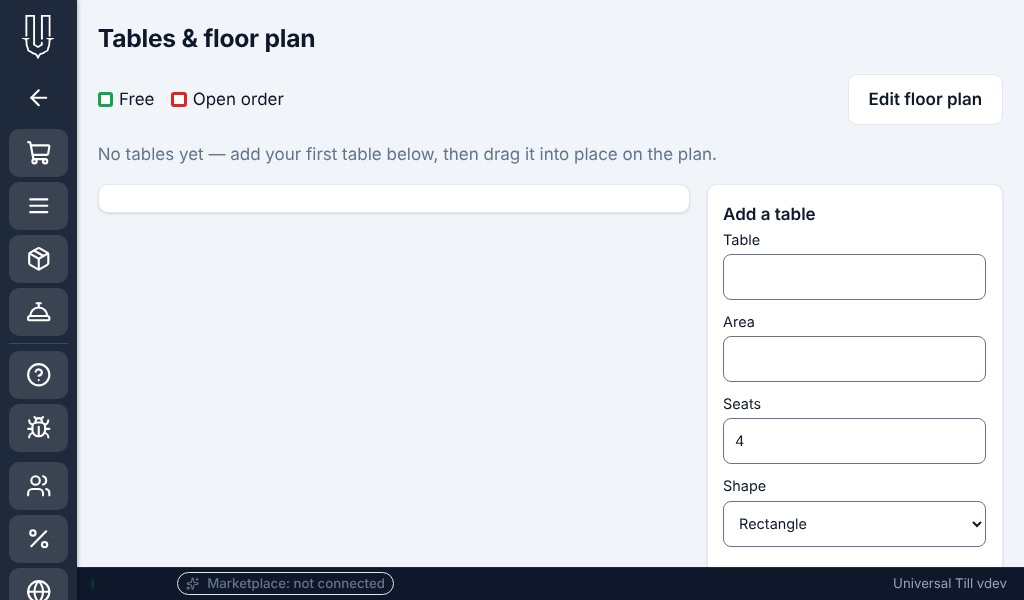
Draw your shop's floor plan — every dining table with its name, area, seats and shape — and see at a glance which tables are free and which have an open order, with how long that order has been open.
How to use it
- Open Tables & floor plan from the menu (manager only) and add a table for each dining table in your shop — a name or number ("T1", "Window 2"), the area it stands in ("Terrace", "Main room"), how many seats it has, and whether it is rectangular or round.
- Tap Edit floor plan, then drag each table to where it really stands in the room. You can also add a table right where it belongs: while editing, tap an empty spot on the plan, fill in the new table's name and details, and it appears at that spot. Positions save automatically as you drop them, and the same layout fits any screen — phone or tablet. Prefer a keyboard? Select a table on the plan (Tab to it) and use the arrow keys to nudge it — hold Shift to move in bigger steps — its position saves the same way.
- Tap Done editing to return to the live view. A green outline means the table is free; a red outline means it has an open order, with the minutes since that order was opened shown on the table.
- Come back and rearrange any time — the floor plan is never locked after setup.
Good to know
- A shop with no dine-in service can simply leave this page empty — nothing table-related appears anywhere else until tables are added.
- Deactivate a table you no longer use instead of deleting it — it disappears from the plan but keeps its history, and can be reactivated later.
- Assign an order to a table from the sale screen's basket, or move a held dine-in order onto a different table with Move table on its row in the sale screen's Open orders list — see Open orders. A table is reserved the moment it is assigned — even before anything is rung up — so a second order can't pick it (the till says the table is already occupied), and the floor plan shows it occupied. It stays occupied while the order is held and after it's resumed, and frees automatically when the order is paid, moved to another table, cleared from the basket, switched to takeaway, reset for a new customer, or the held order is deleted.
- On a shop with more than one till, a table is reserved across all of them: take table 5 on the front till and the terrace till is told the table is already occupied when it tries — the reservation is held by the main till, so the two can never both open an order on the same table. If the main till can't be reached, the till you are on keeps working exactly as a single till does: it reserves the table locally and the sale goes through, so an outage never blocks checkout. A till switched off, or losing the network, while holding a table does not strand it — once that till has been out of touch for about two minutes, any other till may take the table.
- The floor plan is shop-wide and always managed from the main till: on a joined till, adding, editing or deactivating a table shows a message pointing you back to the main till, rather than accepting a change that would only apply locally.
- If a table ever gets stuck showing occupied with nothing really behind it (for example after a till restarts unexpectedly), a manager can tap Free table on its row to clear the stuck reservation — from the main till, same as every other change on this page. It never touches a real held order on the main till itself — if one is still attached there, the table stays occupied and the till tells you so, so you can resume or complete that order first. A held order parked on a different till isn't something the main till can see, so on a multi-till shop, check Open orders (the button with the count on the sale screen) on every till before freeing a table that looks stuck — Free table can't warn you about an order it doesn't know exists. If the table's reservation belonged to a different till the main till has heard from recently, you'll see a distinct message saying so — that's not proof an order is sitting there, just a hint to double-check with that till before reseating the table.
- Before you tap Free table, the occupied row already shows which till holds the reservation — "This till" for the main till's own pick, or another till's name with Online/Offline next to it. Online means that till has been in touch in the last couple of minutes, so its reservation is very likely still genuinely in use; Offline is the stronger sign of a stuck one worth freeing. If the till that made the reservation has since been removed from the shop, the row says so in place of a name instead of leaving the space blank.
- Each enabled table's row also has a QR button — tap it to show a QR code guests can scan with their own phone to order straight from that table, no app and no login needed. That order's kitchen ticket prints at once, and the order waits in Open orders on this table like a held sale until staff bring it up and take payment — whatever this till's own self-order payment setting is, because a guest's own phone has no card terminal attached to it. If another phone is already ordering at that table, or the till is too busy to start a new order just then, the guest's phone says so and offers Try again. See Self-order and Open orders.