
此主题暂无中文版本,你正在阅读英文版。
Option sets
Define a reusable list of values once — Size: S / M / L — and generate an item's variants from it in one step, on any number of items.
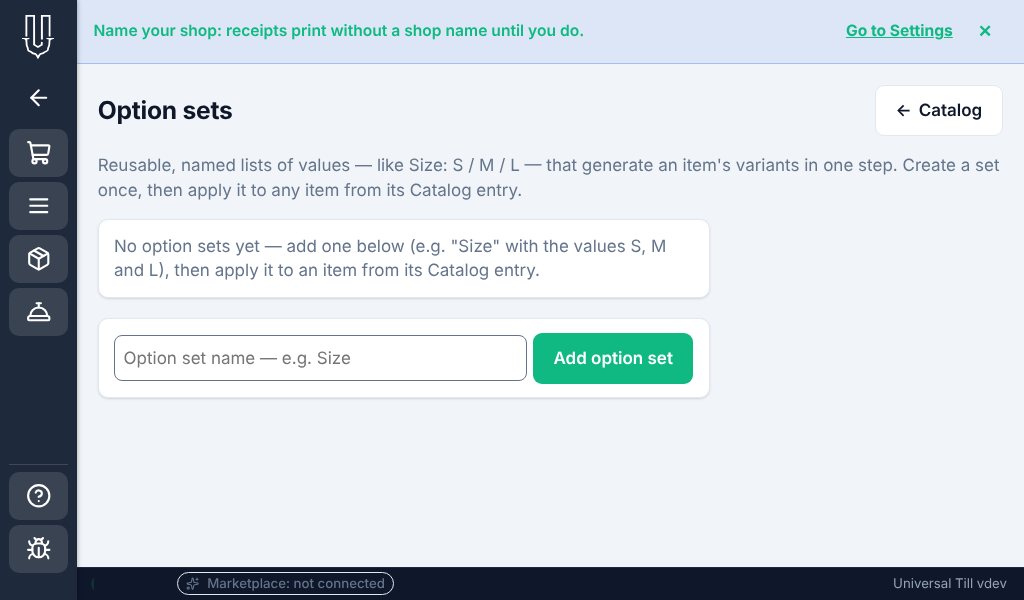
An option set is a named, reusable list of values — Size with S, M and L, or Colour with Red, Green and Blue. Instead of typing "S", "M" and "L" by hand on every T-shirt in the catalog, you define the set once here and apply it to any item; the till then creates that item's variants for you.
Every generated variant is an ordinary variant: it has its own SKU, price, stock and barcodes, and it sells, prints and counts exactly like one you added by hand.
How to use it
- Open Catalog and press Option sets (next to the Customization options button). Type a name — Size, say — and press Add option set.
- On the set's card, add its values one at a time with Add value — S, then M, then L. Values keep the order you add them in; that is the order the variants are generated in.
- Back on the Catalog page, click an item to open its editor and switch to the Variants tab. Above the variants grid, tick the option set(s) you want — up to two (for example Size and Colour) — and press Save.
- Press Generate variants. One variant is created for every combination (three for Size alone; Size × Colour with three colours gives nine), named like S or S / Red (values are joined in the order the sets are listed on this page — the order you created them in), each with a generated SKU and the item's current price. Edit any name, SKU or price in the grid afterwards, add barcodes, and set stock as usual.
- Added a value later — an XL? Press Generate variants again on each item that uses the set. Only the missing combinations are created; existing variants are never duplicated, renamed or removed, so it is always safe to run it again.
Changing or deleting a set
- To rename a set, edit the name at the top of its card and press Rename. Two sets can't share a name.
- To change a value, tap its text on the card, type the new one and press Enter (or tap elsewhere). Use the ↑ and ↓ buttons beside a value to move it earlier or later in the list, and × to remove it. Variants you already generated keep their names — edit them in the item's grid if you want them to match.
- Press Deactivate to stop offering a set on items' Variants tab without deleting it; its card then says Inactive. Activate brings it back.
- A set can only be deleted while no item uses it. Until then its card lists those items under Used by (each name opens that item) and Delete option set is unavailable: untick the set on each item's Variants tab first, then delete it. A deleted (retired) item doesn't count; if it is restored later, apply the set to it again.
Good to know
- Option sets are for a range of real products (sizes, colours, pack sizes) — each combination is its own stock line. For a choice made at the till that doesn't change what you stock ("extra shot", "no onions"), use Customization options on the item instead.
- Values you add here are shared: the same Size set can drive T-shirts, hoodies and mugs. Changing which sets an item uses only affects what Generate variants creates next — variants already made stay as they are.
- A variant you typed by hand in the grid is left alone by the generator, even if its name happens to match a value.
- Option sets are shop-wide and managed from the main till: on a joined till, creating a set or generating variants shows a message pointing you back to the main till.
- An item can have at most 100 variants, counting the ones it already has (hand-added and deactivated ones too). If generating would go past that, Generate variants creates nothing and shows an error; remove a value or use a single set instead.